 Ora

A glance at active work
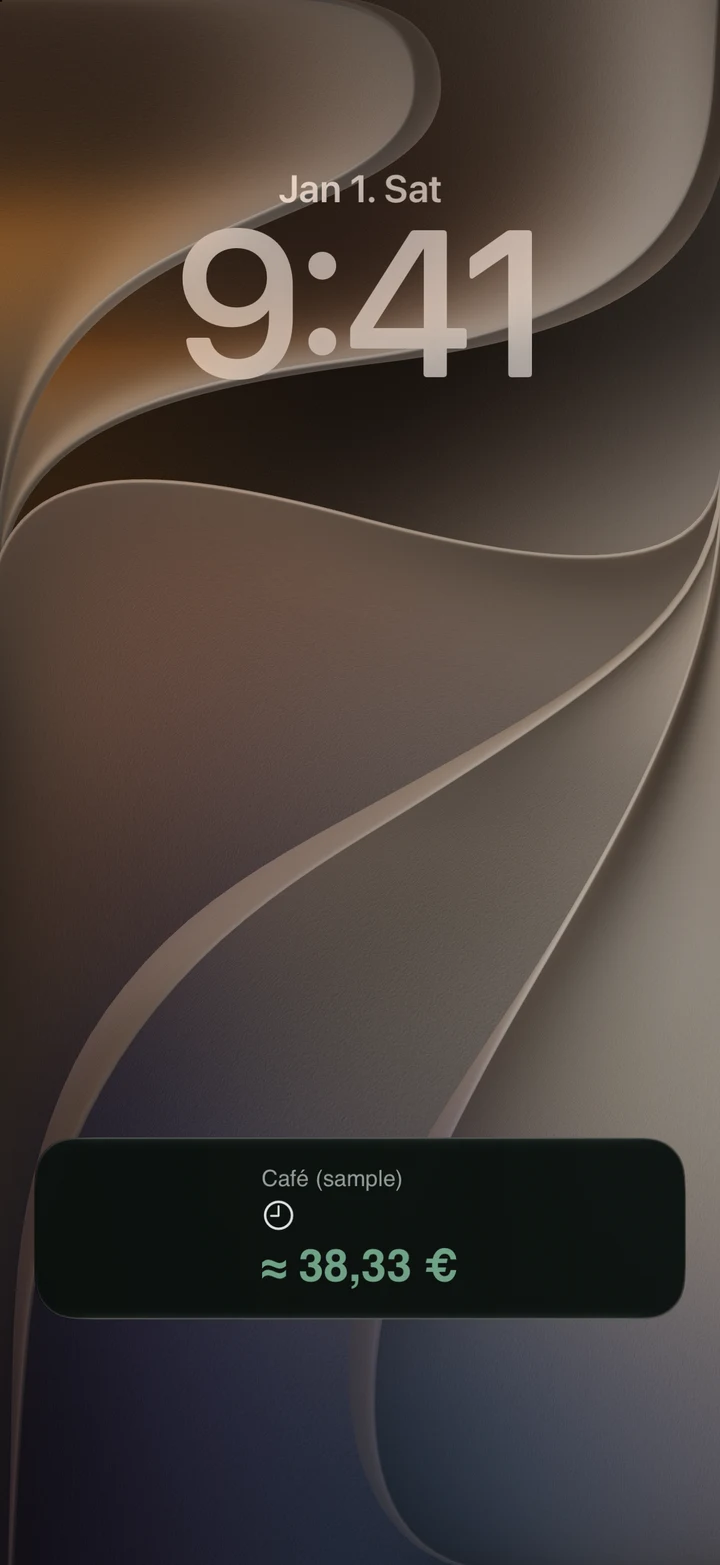
Live Activity brings the running shift’s context, elapsed time and earnings estimate to an iPhone system surface. It is separate from the app’s Today screen and from a Home Screen widget.
The image shows a sample shift on the Lock Screen. Dynamic Island presents the activity on iPhones that have it.
Follow the shift lifecycle
- Start a shift: clock in using Ora.
- Check the activity: allow Live Activities for Ora in iOS Settings and look at the Lock Screen.
- Finish the shift: clock out, then review the completed record in Ora.
A live estimate describes work still in progress. Use the saved shift for later payroll comparisons.
Live and completed are different
A shift that starts at 09:00 has 1h 30m elapsed at 10:30. An unpaid break can make paid time different from that elapsed interval.
Later edits also change the completed record. A glanceable estimate is useful during work, while the saved dated shift provides the detail afterwards.
Devices and settings
Live Activities require system permission. Dynamic Island is available only on iPhones with that hardware; other compatible iPhones use the Lock Screen presentation.
iOS controls system updates and background behavior. Open Ora for the detailed record if a system glance appears stale or incomplete.
Common questions
Does it update without keeping Ora open?
The Live Activity appears outside the app. iOS manages its updates and background behavior, so it is not a promise of uninterrupted live payroll calculation.
Which iPhones support Dynamic Island?
Dynamic Island appears only on iPhone models equipped with it. Ora’s Lock Screen Live Activity does not require Dynamic Island.
How do I finish the shift?
Open Ora and clock out from the running shift. Review the saved shift afterwards to check its finish and breaks.