 Ora

Choose a useful format
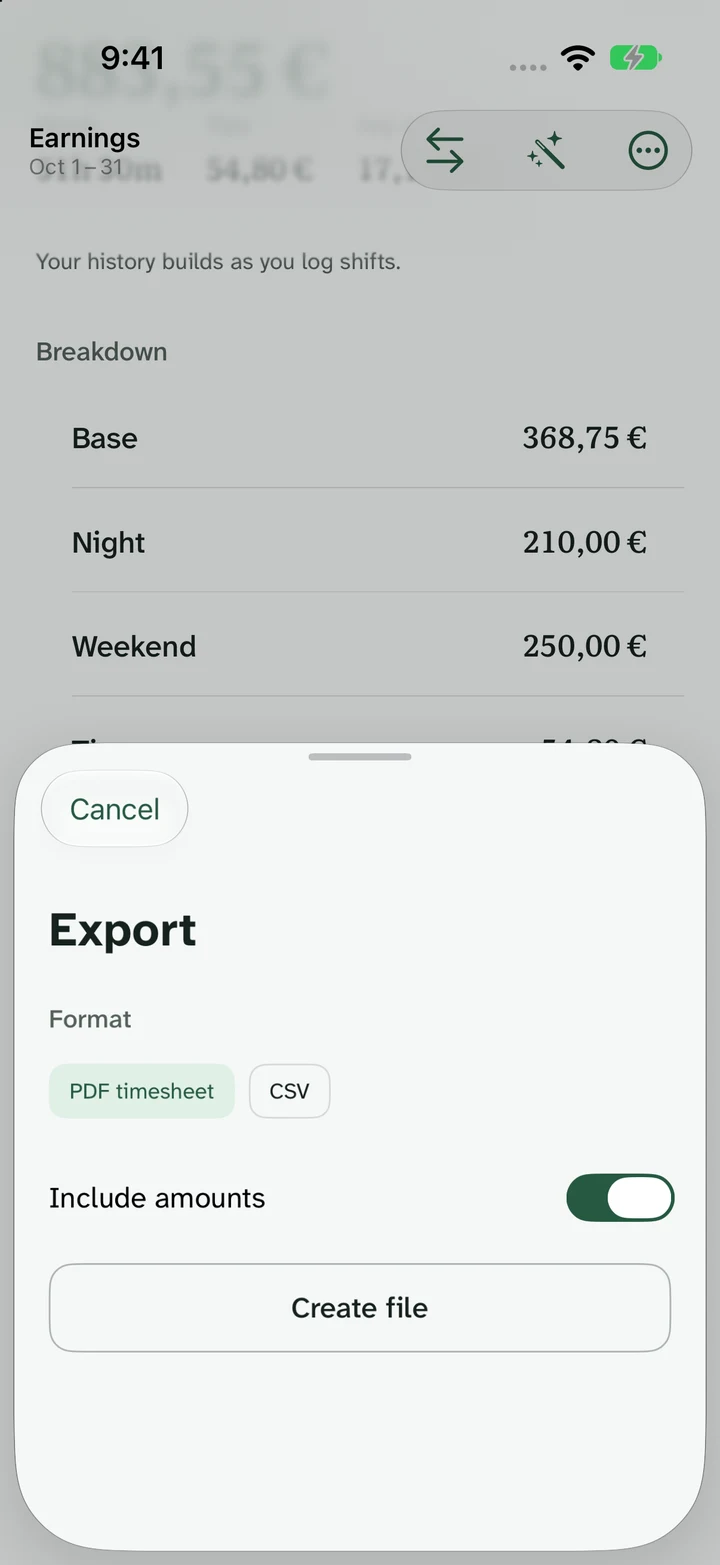
A PDF timesheet is a readable fixed-layout report. CSV gives you rows that a spreadsheet or another compatible tool can import. Neither format is an official employer payslip.
The PDF export includes an option to include amounts. CSV contains monetary data, so hiding earnings on another screen does not redact the exported file.
Select, create and inspect
- Select the record: choose the job and earnings period, then open Actions → Export….
- Create the file: choose PDF timesheet or CSV, set the available amount options and tap Create file.
- Inspect and share: check the file, tap Share, then choose a destination in the system Share sheet.
Check the period printed inside a PDF as well as its filename. Use the report’s actual dates when keeping or sharing a copy.
Check a simple report
Five 7.5-hour shifts give 37.5 paid hours. At €15 base with no extras or premiums, the corresponding gross estimate is €562.50.
Check the individual shift rows, the paid-hours total and the chosen period before sharing. An employer may require a particular format or its own time-record system.
Share only what is needed
Send only the job and period needed by the recipient. Review notes, names and amounts in the actual generated file, especially when working for several employers.
Use an appropriate sharing destination. A PDF or CSV sent from your device is then handled by the app or service you choose.
Common questions
Can I export a monthly record?
Choose Month in Earnings and select the job before opening export. Check the dates inside the generated report before sharing it.
Can I send a report to my employer?
Yes. Create the file and use the system Share sheet. Ask which format the recipient accepts and check that it contains only the intended information.
Is the export a formal payslip?
No. It is your work-record export. An employer’s payroll statement, deductions and payment remain separate.